Quote template Word that keeps its layout
Adding rows can wreck a Word layout, and Word will not total your prices. This file is five plain tables, with clear steps for rows, totals and saving a PDF.
- Five tables: header, customer, lines, totals and signature
- Reuse it as an estimate in Word too
- A free .docx that opens in Word or Google Docs
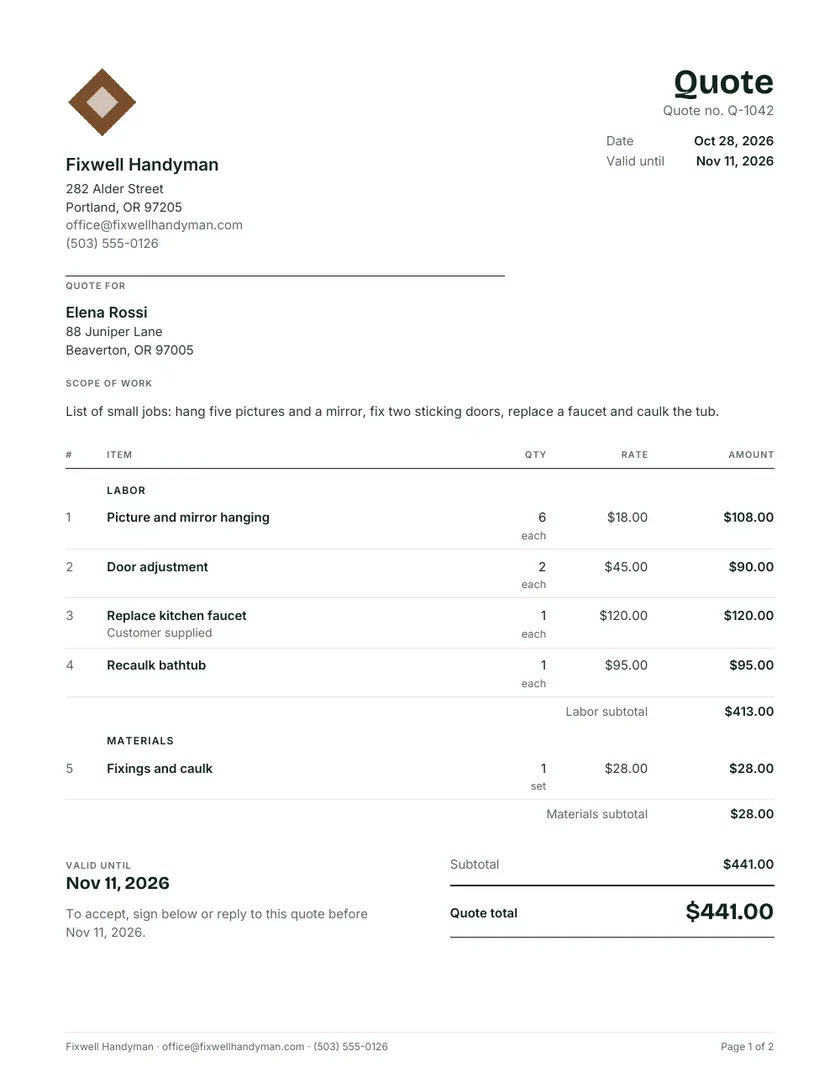
What is inside the quotation format in Word
This free quote template for Word is a .docx file made of five plain tables: your business header, the customer box, the priced lines, the totals and a signature row. It opens in Microsoft Word on Windows and Mac, in Word for the web and in Google Docs. Below you will see how to fill it in, add rows without wrecking the layout, handle the totals and save the finished quotation as a PDF. This is also the quotation template Word users ask for, and the quote template Word free download arrives by email. Change the heading and you have an estimate template Word file too.
The Word file follows the order a customer reads a quote: who you are, who it is for, what you will do, what it costs and how to say yes. Everything sits in tables with hidden side borders, so text lines up without tabs or spaces, and each block can be edited without pushing the others around.
| Block | What it holds | Editing tip |
|---|---|---|
| Header table, 2 columns | Business name, address, phone and email on the left; the word Quote, quote number, date and valid until on the right | Put your logo in the top left cell with Insert, Pictures |
| Customer box, 1 shaded cell | QUOTE FOR, then the customer name and address | Add a contact person or a site address as another line inside the same cell |
| Line items, 5 columns | Item, Qty, Unit, Rate and Amount, with merged rows for group headings such as Labor and Materials | Keep the detail text under the item name, in the same cell |
| Totals, 2 columns | Subtotal and Quote total, with room for tax and deposit rows | Insert rows here for sales tax, a discount or a deposit |
| Signatures, 3 columns | Signature, Name and Date lines under the acceptance sentence | Leave as is; the lines print at a usable length |
The page is US Letter with side margins of about 0.7 in and roughly 0.6 in at the top and bottom, set in Arial at 9.5 pt. Between the tables, the Scope of work, Exclusions, Terms and Acceptance headings are ordinary paragraphs, so they wrap like any other text you type.
Filling in the Word quote, top to bottom
Work down the page once, replacing every sample entry, and the quote is ready in a few minutes. The file arrives filled in with a handyman job (pictures hung, doors adjusted, a faucet replaced, a tub recaulked) so you can see how detail and pricing look before you overwrite them with your own.
- Your businessType over Fixwell Handyman and the sample address. Add your state license number or EIN on a new line if your customers expect to see it.
- Number and datesChange Q-1042 to your next number, then set today’s date and a valid until date. Fourteen or thirty days is common.
- CustomerName and address go in the shaded box. For a rental or commercial site, add the job address as a second line.
- Scope of workTwo or three sentences that describe the finished job, written so a stranger could tell when it is done.
- LinesOne row per task or material, each with a quantity, a unit such as hrs, each or ft², a rate and the amount.
- TotalsRetype the subtotal and total, then add rows for tax or a deposit if you use them.
- Exclusions and termsReplace the placeholder sentences with what you do not cover and how you expect to be paid.
The small gray footer about example prices is there so nobody mistakes the sample for a real quote. Delete it once your own lines are in.
Adding rows without breaking the layout
Add rows from inside the table, never by pressing Enter underneath it. A row created with Insert or with the Tab key copies the borders, font and right alignment of its neighbor, so prices stay in a clean column and the totals table below simply moves further down the page.
- Tab in the last cell. Click the final Amount cell in the table and press Tab. Word adds a matching row at the bottom.
- Insert between rows. Right-click a line, choose Insert, then Insert Rows Below or Insert Rows Above. Hovering at the left edge between two rows also shows a small plus sign that does the same thing.
- A new group heading. Select a heading row such as LABOR, copy it, click where the new group should start and paste. Pick Insert as New Rows from the paste options, then type the new group name.
- Removing a row. Select the whole row and press Backspace. The Delete key only empties the cells and leaves a gap.
- Long quotes. Select the header row and turn on Repeat Header Rows on the Table Layout tab, so page two starts with the column names. In Table Properties, on the Row tab, untick Allow row to break across pages to keep each line in one piece.
For an optional extra, keep the row but add (optional, not included) after the item name and put its amount in brackets, the way the file already marks optional work. Leave that amount out of the subtotal.
Totals: Word does not add up for you
The amounts and totals in the Word template are typed text, not live formulas. Change a quantity and nothing else moves, so check the arithmetic every time. When a quote has many lines, a deposit or tax, the Excel version or the online quote maker does the sums and removes the risk of a typo in the total.
| Sample line | Qty x rate | Amount |
|---|---|---|
| Picture and mirror hanging | 6 x $18 | $108.00 |
| Door adjustment | 2 x $45 | $90.00 |
| Replace kitchen faucet | 1 x $120 | $120.00 |
| Recaulk bathtub | 1 x $95 | $95.00 |
| Fixings and caulk | 1 x $28 | $28.00 |
| Subtotal | $441.00 |
To ask a 25% deposit on that job, add two rows to the totals table: Deposit to book $110.25 and Balance on completion $330.75. Word can insert a formula field from Table Layout, Formula (for example =SUM(ABOVE)), but the result only refreshes when you select it and press F9, which is easy to forget on a busy day.
Saving the Word quote as a PDF
Send the customer a PDF, not the .docx. A PDF keeps your fonts and spacing on any phone or computer, and nobody can change a price by accident. Word makes one in a few clicks on every platform, and the file stays small enough to attach to an ordinary email.
- Word for Windows. File, Save As, then choose PDF in the Save as type list. File, Export, Create PDF/XPS gives the same result.
- Word for Mac. File, Save As, then pick PDF under File Format.
- Word for the web. Open the File menu and use Download as PDF.
Name the file with the quote number and customer, such as Q-1043 Rossi.pdf, so you can find it when the customer calls back. Open the PDF once before sending and check that nothing has slipped onto a nearly empty second page.
Reusing it, and making an estimate template in Word
Save a clean copy as a Word template so each new quote opens as an untitled document and your master is never overwritten. The same file becomes an estimate template in Word when you change the heading and add a line explaining that the final price may move.
- Clear the sample lines, keep your business details, then use File, Save As, Word Template (.dotx). Double-clicking the .dotx later opens a fresh copy.
- Keep quote numbers in sequence (Q-1043, Q-1044) and log each one with the customer and amount, so the invoice can be matched to it later.
- To change the font everywhere at once, modify the Normal style on the Home tab instead of reformatting cell by cell.
- For an estimate, change Quote in the header and in the acceptance sentence to Estimate, then add a row under the total such as Expected range $400 to $480. Read how a quote differs from an estimate before you choose.
When Word is the right format, and when to use another
Word suits quotes that are mostly words: a careful scope, a few conditions and a handful of priced lines on your own letterhead. It is the wrong tool when numbers change often or run to dozens of lines, because every edit has to be retyped and checked by hand before the quote goes out.
Word works well for
- Jobs with five to fifteen lines
- Quotes with a long written scope or conditions
- Businesses that already keep letters and forms in Word
- Teams sharing documents in Word for the web
Pick another format for
- Many lines or frequent price changes: the Excel quote template recalculates
- Work stored in Google Drive: open it as a Google Docs quote
- Quoting from a phone on site: the free online quote maker
- Forms filled in with a pen: the printable quote template
Word quote template questions
How do I get the quote template for Word as a free download?
Press the Word button near the top of this page and enter your email address. We send the Word, Excel and PDF versions free. If you would rather not give an email, the online quote maker builds the same quote in your browser and downloads it as a PDF without any sign up.
How do I make a quotation format in Word from scratch?
Start with a two column table for your details and the quote number, then a five column table headed Item, Qty, Unit, Rate and Amount. Add a small two column table for totals and a three column row for signatures, and hide the side borders so it reads cleanly. The quotation format guide explains what each part is for.
Can Word calculate the totals in a quote table?
Only with formula fields, and they do not update by themselves. You insert them from Table Layout, Formula, and refresh them with F9 after every change. For sums you can rely on, use the Excel version, where line amounts, discount, tax and deposit recalculate as you type.
Why does my Word quote run onto a second page?
Usually there is an empty paragraph after the last table, or a long item detail pushing everything down. Click the paragraph mark button on the Home tab to show hidden returns and delete the stray ones. Shortening the space above the Exclusions heading or trimming long details also pulls the signature lines back onto page one.
Should I send my quote as a Word file or a PDF?
Send a PDF. It looks the same on every device, cannot be edited by mistake, and opens on a phone without Word installed. Keep the .docx for yourself so you can copy it for the next job or issue a revised quote with a new number.
Does the Word template open in Google Docs or Pages?
Yes. Upload the .docx to Google Drive and open it with Google Docs, or open it in Pages on a Mac. Text and tables carry over; check the column widths and the shaded customer box after converting. The Google Docs quote template page covers the copy and edit steps.


